
iOS 18 Lets You Change Widget Sizes on Your iPhone’s Home Screen Without Deleting Them First
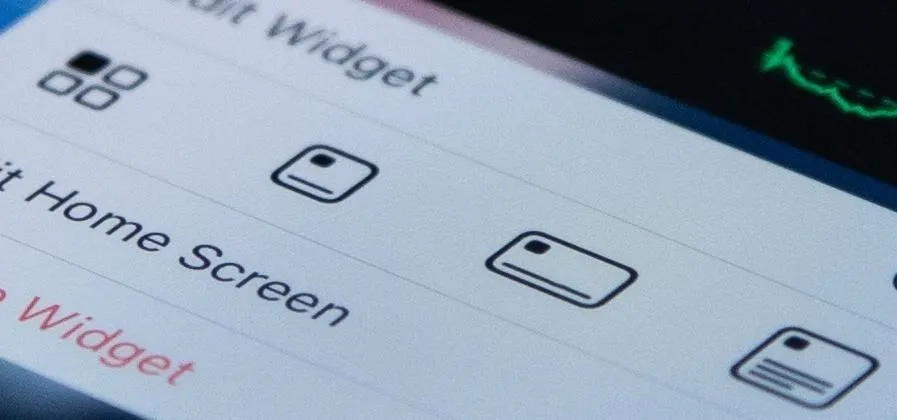
Apple just made it easier to change a widget's size on your iPhone's Home Screen, so you no longer have to delete widgets and add different-sized versions of them. With iOS 18, you can adjust a widget's size straight from its current widget size on your Home Screen. The new method also works on iPad with iPadOS 18. To change widget sizes on older software versions, you have to touch and hold the current widget on your Home Screen, hit "Remove Widget," open the Home Screen editor, tap the plus (+) icon, find the widget again in the new size you want, and add it. You may also have to customize the widget's settings again if you want the new widget to show the same content. It's a frustrating, long process, especially if you're trying to adjust multiple widgets on your Home Screen. How to Resize Home Screen Widgets and App IconsThanks to iOS 18 and iPadOS 18, released on Sept. 16, you no longer have to mess with the widget gallery to adjust widget sizes. Don't Miss: 10 New Home Screen...more
Filed under: Allgemein - @ 19. September 2024 17:55